How to Make a Golf Scorecard Graphic
2026-11-03 · Score Graphics
A score graphic tells viewers how the round is going during a shot. A scorecard graphic shows them the whole round at once: every hole so far, every score, and where it's heading. It's the moment viewers lean in, check the birdies and the damage, and decide whether they're watching a good round or a car crash.
This guide covers how to lay out a golf scorecard graphic, the marks golfers expect to see, how to handle the front and back nine, when to put it on screen, and how to make one without spending hours on it.
What a scorecard graphic shows
A scorecard graphic is a cleaned-up version of a paper scorecard. Most use these rows:
- 1–18Hole numbersAcross the top.
- ParPar for each holeUnder its number.
- YdsYardage, if it fitsThe first row to drop when space is tight.
- A row per playerName on the left, a score on each hole.
- TOTTotalsOUT, IN, TOT, and the score to par viewers care about most.
Keep the same fonts and colours as your score graphic, so the two feel like one set. If your shot-by-shot graphic is navy and gold, your scorecard should be too.
Birdie circles and bogey boxes
Golf has a shorthand for scores that every golf fan reads instantly, and using it makes your card easy to scan:
- Par: just the number, no mark.
- Birdie (one under): a circle around the number.
- Eagle (two under): a double circle.
- Bogey (one over): a square box around the number.
- Double bogey or worse: a double box.
Many cards also colour the marks, for example red or gold for under par and a darker colour for over par. Keep colours as a helper rather than the only signal: the circles and boxes are what people look for, and they still work for viewers who can't tell some colours apart.
Front nine and back nine
Eighteen holes is a lot of columns for a 16:9 frame. There are two common ways to fit them:
- 9+9Two rows of nine1–9 with OUT, 10–18 with IN and TOT. Clearest on a phone.
- 18One long rowTV style, for one or two players. Check it on a phone first.
You can also show just the nine you're on. During the front nine, show holes 1 to 9. At the turn, show the completed front nine with the OUT total. On the back nine, show holes 10 to 18 with OUT carried across so viewers still see the full score. That keeps the card big and simple, and it fits well in a vertical 1080 × 1920 frame for Shorts, TikTok and Reels.
When to show it
- After every holeWhat most channels do: a natural pause that resets the story.
- At the turnAfter the 9th, with the front nine total.
- At the endAlways. The full card is the payoff.
Two to four seconds is usually enough for a mid-round card: long enough to read the new score, short enough not to stall the video. Give the final card a bit longer.
How to make one by hand
You can build a scorecard graphic in Canva, Photoshop, or the title tool in your video editor.
- 1Make a blank canvas1920 × 1080, with a transparent background.
- 2Draw the cardA grid of 9 or 18 columns, rows for hole, par and each player, then totals.
- 3Fill in holes and parsThey never change: this is your template.
- 4Add the scores so farCircles and boxes in the right places, totals and score to par.
- 5Export it as a PNGNamed after the hole, like Card_H01.png.
- 6Duplicate it for the next holeAdd that hole, update the totals, export again.
Then, in your editor, place each card on a track above your footage between the last putt of one hole and the tee shot of the next.
The catch: 18 cards per round
Because the card fills in as the round goes, you need a new one after every hole: 18 cards for one round, each with the right marks and the right totals. With four players, every card has four rows to update. One wrong score early on and every card after it is wrong, and you usually spot it after you've rendered the video.
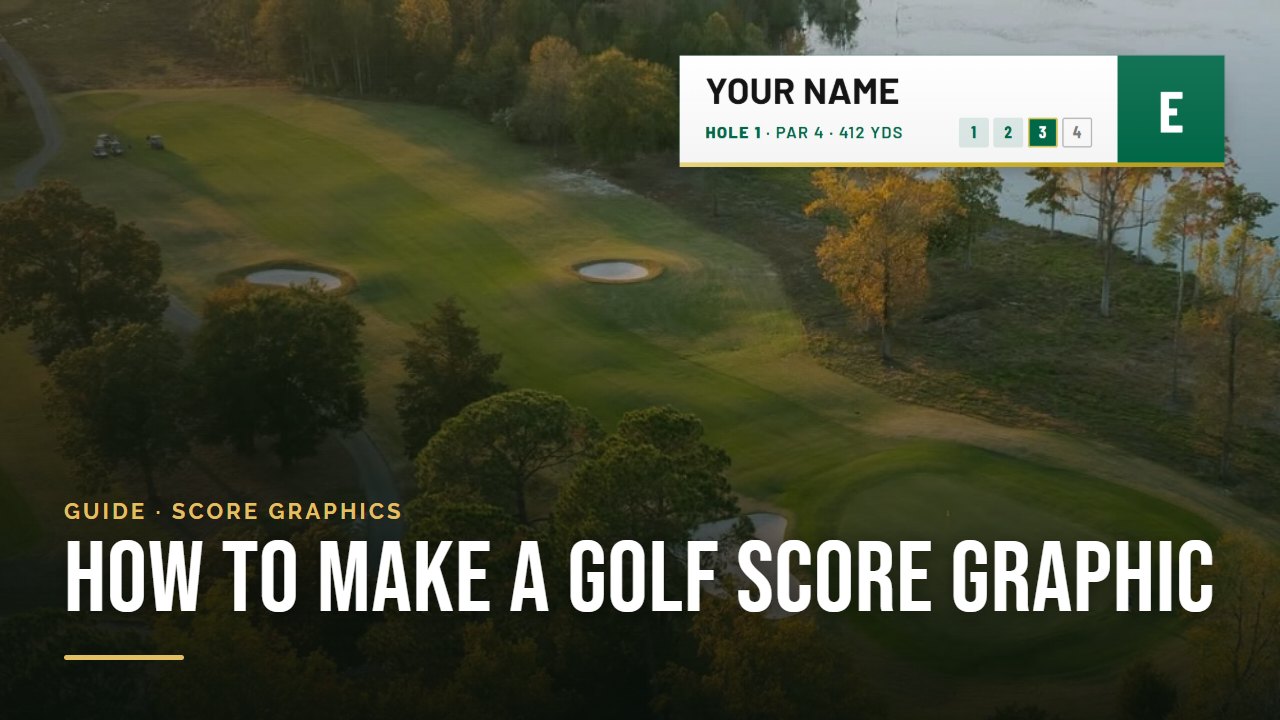
On top of that you still need a score graphic for every shot, which is another 80 to 100 graphics. The beginner's guide to making a golf score graphic covers those.
 Beginner's guideHow to Make a Golf Score Graphic
The quick way: a scorecard after every hole, automatically
The Score Graphics Generator does both from one scorecard. Enter the round, or on Pro just photograph the paper card and the AI scan fills in the pars, yardages and scores, flagging anything it isn't sure of.
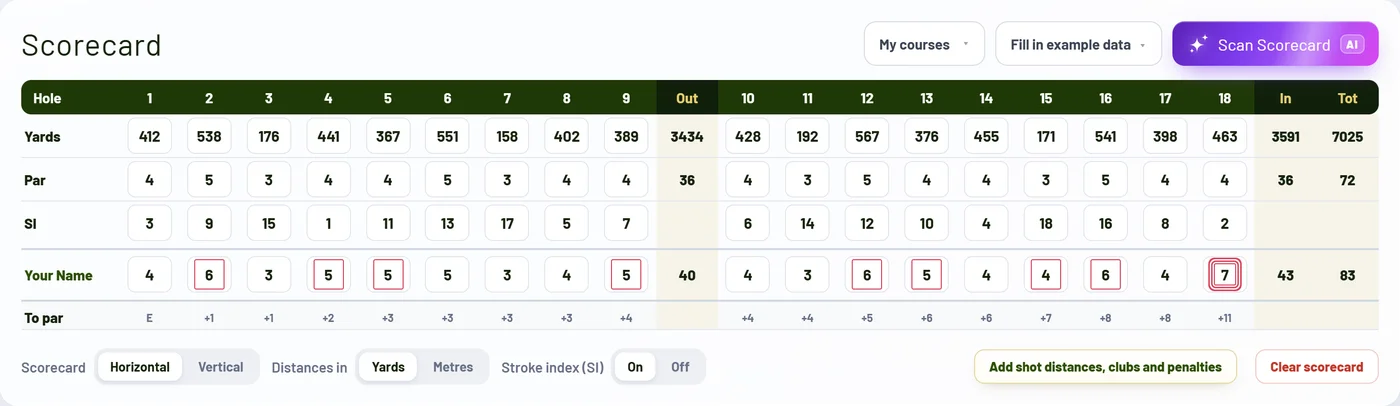
Pro then adds a full scorecard graphic after every hole, filled in through that hole, with birdies circled and bogeys boxed, in the same style as your score graphic. It handles stroke play with up to four players, and match play singles or fourball with the match status (AS, 2UP, Dormie) worked out hole by hole.
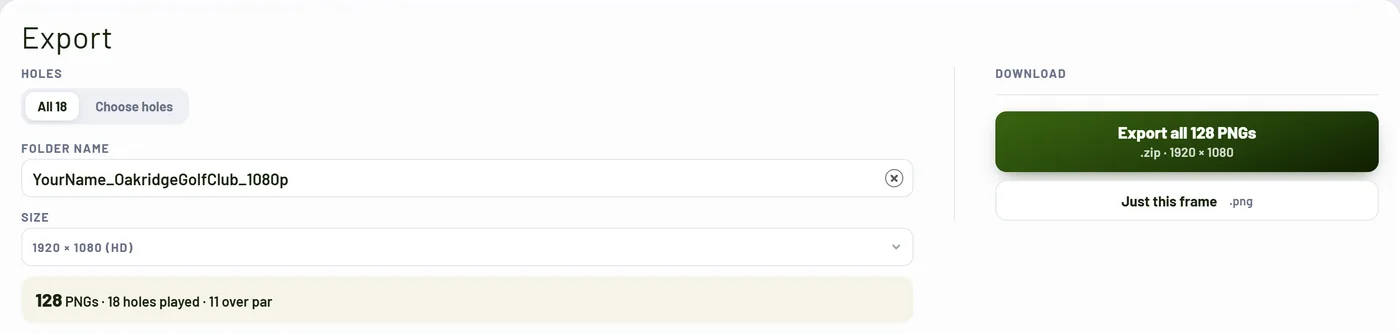
Everything exports as transparent PNGs in a folder per hole, ready to drop into Premiere Pro, Final Cut Pro, DaVinci Resolve, CapCut or any editor that takes PNG images.
Try it on your next round
You can make a free account and preview every design with your own name on it before paying anything, and Starter and Pro both come with a 14-day free trial (the scorecard graphic is part of Pro). For the whole process, from scorecard to edit, read the full guide next.
 Full guideHow to Add Score Graphics to Your Golf YouTube Videos