Golf Score Graphics for TikTok, Instagram Reels and YouTube Shorts
2026-11-01 · Score Graphics
Short clips are where a lot of golf channels grow now. One great hole, a chip-in or a disaster on the 18th can reach far more people on TikTok, Instagram Reels or YouTube Shorts than a full round video does. A score graphic makes those clips easier to follow in the few seconds a viewer gives you: which hole, what par, and how the round is going. Get it wrong and the app's buttons sit right on top of your score overlay.
But vertical video has its own rules. The frame is a different shape, and the app puts buttons and captions over your video. This guide covers the right size, where the graphic can safely go, and how to pace it for short-form.
The right size: 1080 × 1920
TikTok, Reels and Shorts are all vertical 9:16 video. Make your score graphic the same size as the frame, 1080 × 1920 pixels, with a transparent background, and save it as a PNG. The box sits where you want it and the rest of the image is see-through, so it drops on top of your footage and lines up every time.
Don't just crop your 16:9 YouTube edit with the graphic already on it. A graphic placed in the corner of a wide frame either gets cut off or ends up in an awkward spot when the video is cropped to 9:16. Make a separate vertical version of the graphic and put it on after you've framed the vertical edit.
Safe zones: where the app covers your video
Each app lays its own buttons and text over your video, and anything underneath is hard to see. The exact spots shift a little between apps and phones, but the pattern is the same on all three:
- The right-hand sideA column of buttons: like, comment, share, profile, sound.
- The bottomUsername, caption, sound and subscribe. The biggest no-go area.
- The topThe app's tabs or search bar on some screens.
As a rough guide on a 1080 × 1920 frame, keep the graphic out of the bottom 400 pixels or so, the right-hand 150 pixels, and the top 200 pixels. That leaves the upper middle and upper left of the frame as the safest place for a score graphic. Every app changes its layout now and then, so post a test clip privately and check it on your phone before you rely on a spot.
Where to put the graphic
With the safe zones in mind, these placements work well for golf:
- Top left or top centreBelow the app's top bar: clear of every button.
- Away from the ball flightBehind the golfer? Drop it lower or to one side.
- Away from the playerFace-on, keep it above their head, not across the swing.
Whatever you choose, keep it in the same place for every clip you post. People scrolling past learn where to look, and a consistent graphic makes your clips recognisable before they've seen your name.
Make it bigger than you think
A vertical video is watched on a phone, full screen, often for a couple of seconds before the viewer decides to stay or scroll. A graphic that looks fine on your computer can be tiny on a phone. Make the box wide enough to fill a good chunk of the frame's width, use bold capitals for the name, and make the score to par the biggest thing on it.
Keep it short, too. On a wide YouTube graphic you might show the name, hole, par, yardage, shot number and score. On a vertical one, if space is tight, the hole, par and score to par are the parts that matter most.
Pacing for short-form
Short clips move fast, and the graphic has to keep up:
- On from the first frameShort clips start on the shot, so the graphic's already there.
- Stakes up front"HOLE 18 · PAR 4" at −1 gives viewers a reason to stay.
- Not every shotA round in 60 seconds only needs the key shots.
- End on the scoreA final scorecard is the payoff, and a reason to rewatch.
Adding it in your editor
The steps are the same as for a normal video: put the PNG on a track above your footage, line it up with the shot and trim it to length. If you edit on your phone, the CapCut guide covers the mobile app step by step, including which format keeps animated graphics transparent. If you use Premiere Pro, there's a step-by-step guide for that too.
 CapCutHow to Add Golf Score Graphics in CapCut
 Premiere ProHow to Add Golf Score Graphics in Premiere Pro
One round, every format
The awkward part of short-form is making everything twice: one set of graphics for the YouTube video and another for the vertical clips. Make them by hand and that's 80 to 100 graphics per round, per format.
The Score Graphics Generator does both from the same scorecard. Enter the round once (or scan the card on Pro) and it makes a transparent PNG for every shot, with the score to par worked out shot by shot. You choose the design, your colours, the size and the position, so you can set the graphic clear of the app buttons once and save it as a preset for every round after.
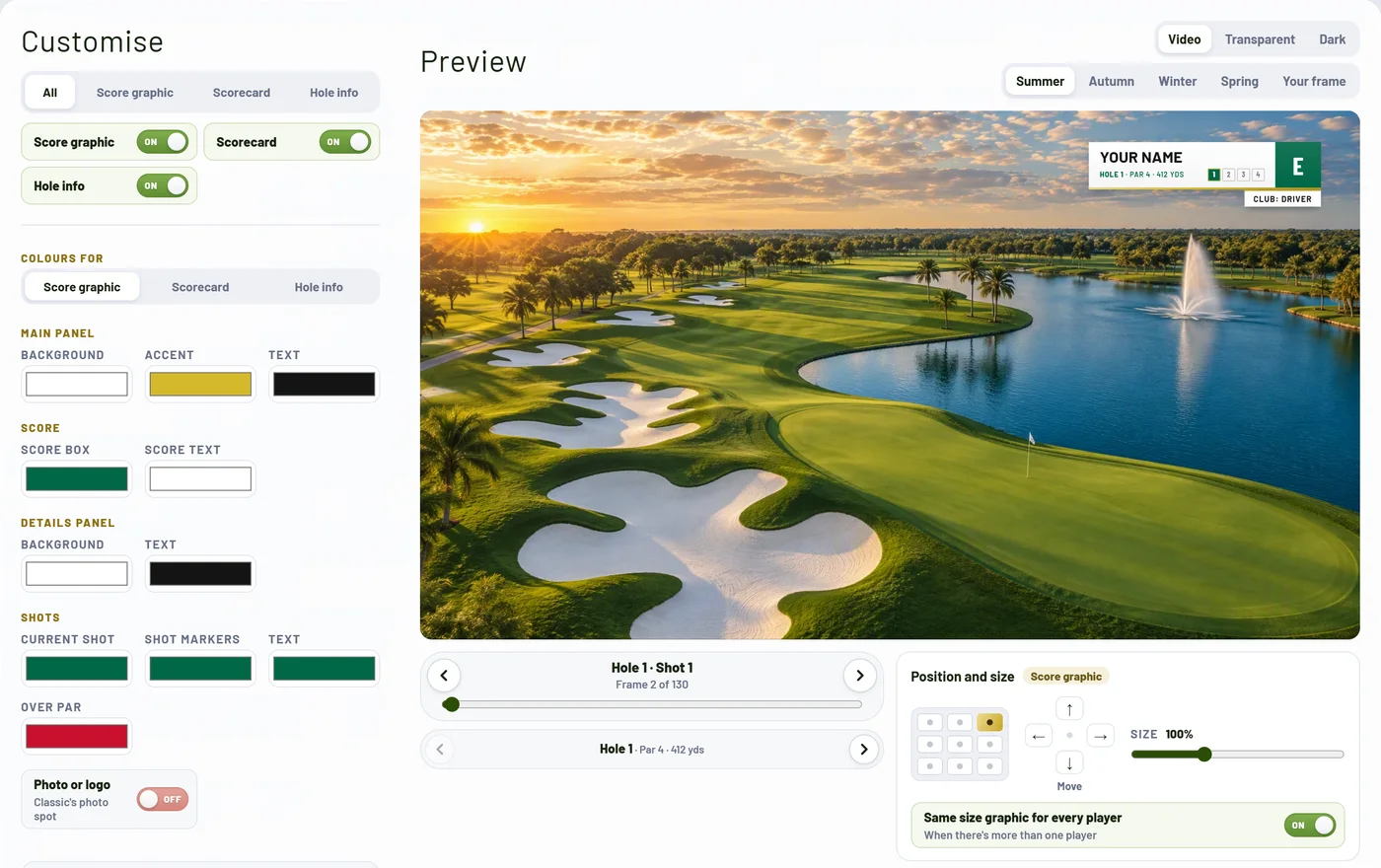
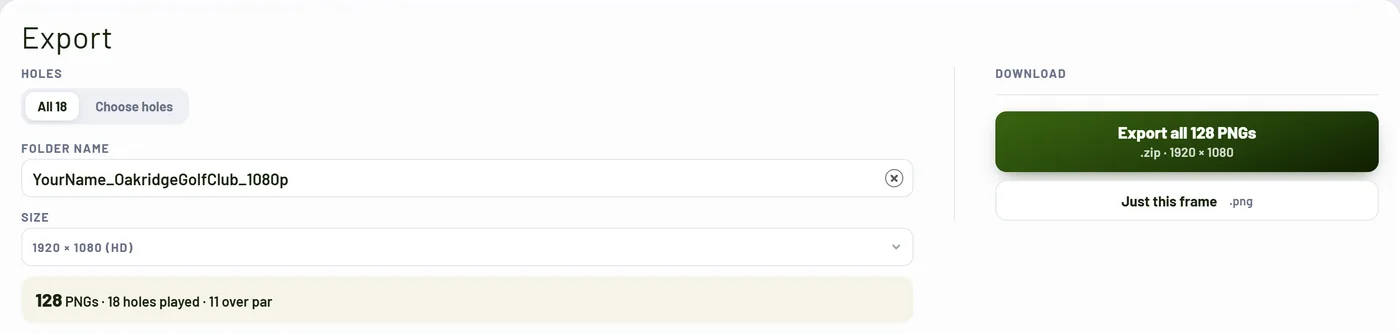
When you export, pick the size: HD (1920 × 1080) for the YouTube video, or vertical (1080 × 1920) for Shorts, TikTok and Reels, from the same round. On Pro, the animated designs export as transparent clips too, in the format that suits your editing app, and you get 4K as well.
Try it on your next clip
You can make a free account and preview every design with your own name on it before you pay anything, and Starter and Pro both come with a 14-day free trial.