How to Add Golf Score Graphics in CapCut (Desktop and Mobile)
2026-10-30 · Score Graphics
You edit your golf videos in CapCut, it's free, it's quick, and it does almost everything you need. Then you want a score graphic on each shot, like the big golf channels have, and it isn't obvious where to start. Do you build it in CapCut? Do you make it somewhere else and bring it in? And how do you do it on your phone?
This guide covers both versions of CapCut: the desktop app on a Mac or PC, and the mobile app. It shows how to add a score graphic as an overlay, how to time it, and how to handle animated graphics without a black box appearing behind them.
What you need before you start
The easiest way to add a score graphic in CapCut is to make it outside CapCut as an image with a transparent background, then lay it over your footage. You need:
- A transparent PNG for each shotThe size of your video: 1920 × 1080, or 1080 × 1920 for Shorts, TikTok and Reels.
- Sensible file namesH01_S1.png, H01_S2.png… so they sort in shot order.
- Your edit roughly cutAdd graphics once the footage stops moving around.
If you haven't made the graphics yet, the beginner's guide covers what to put on one and how to build it by hand.
 Beginner's guideHow to Make a Golf Score Graphic
Adding score graphics in CapCut on desktop
- 1Import the graphicsUse the import button, or drag the whole folder into the media panel.
- 2Drag one above your videoDrop it on the empty space above the main track, not on it.
- 3Line it up with the shotStart it a second or so before the swing.
- 4Set how long it staysDrag its right edge to where the ball lands or the clip cuts.
- 5Check the positionSame-size PNGs line up on their own. Don't resize by hand.
A quicker trick: select every graphic for one hole in the media panel and drag them onto the timeline together. They land one after another in order, and you then slide each one to its shot and trim it. That's much faster than dragging them across one at a time.
Adding score graphics in CapCut on mobile
On the phone app, images go on top of your footage with the Overlay tool.
- 1Get the graphics onto your phoneA cloud drive or AirDrop, saved to your photo library.
- 2Move the playhead to the shotThe white line just before the swing.
- 3Tap Overlay, then Add overlayPick that shot's PNG. It lands where the playhead is.
- 4Make it fill the framePinch until it's edge to edge, and the box sits in its corner.
- 5Trim itDrag the end handle to where the shot ends.
Repeat for each shot. Zoom the timeline in with two fingers when you're trimming, because it's easy to grab the wrong layer on a small screen.
Animated score graphics in CapCut
An animated graphic is a short video clip with a transparent background: the box slides or fades in, then stops. The trick is to put the clip down first and the still PNG straight after it, on the same track, so the graphic animates in and then holds for the rest of the shot.
The thing that catches people out is the file format. Not every format keeps its transparency in every app, and if CapCut can't read the transparency, you'll see a black box behind your graphic instead of your footage.
- CapCut on desktopTransparent .mov clips (QuickTime Animation).
- CapCut on mobileTransparent GIFs, pinched to fill the frame.
If you ever see a black background, the clip isn't broken: it's in a format that version of CapCut can't read the transparency of. Swap it for the right one.
Tips for score graphics in CapCut
- Show it before the swingHole, par and score before the shot, not after.
- One corner all videoTop left or top right stays clear of the ball.
- Add graphics lastCut a shot later and every graphic after it needs fixing.
- A separate vertical project1080 × 1920 graphics for Shorts, not a cropped 16:9 edit.
- Watch it on your phoneCan't read the score at a glance? Make it bigger.
 Short-form videoGolf Score Graphics for TikTok, Reels and Shorts
The slow part: one graphic for every shot
Here's the honest bit. Adding one graphic in CapCut takes a minute. A full round is 80 to 100 shots, and each shot needs its own graphic, because the shot number and score change every time. Making all of those by hand, and then placing them one by one, can take a whole evening, especially on a phone.
The Score Graphics Generator takes care of the making. Enter your scorecard once and it creates a transparent PNG for every shot, with the score to par worked out as you go. Pick a design, set your colours, and put it in the corner you want at the size you want. Because every PNG is made at the size of your video, it lands in exactly that spot when you drop it into CapCut.
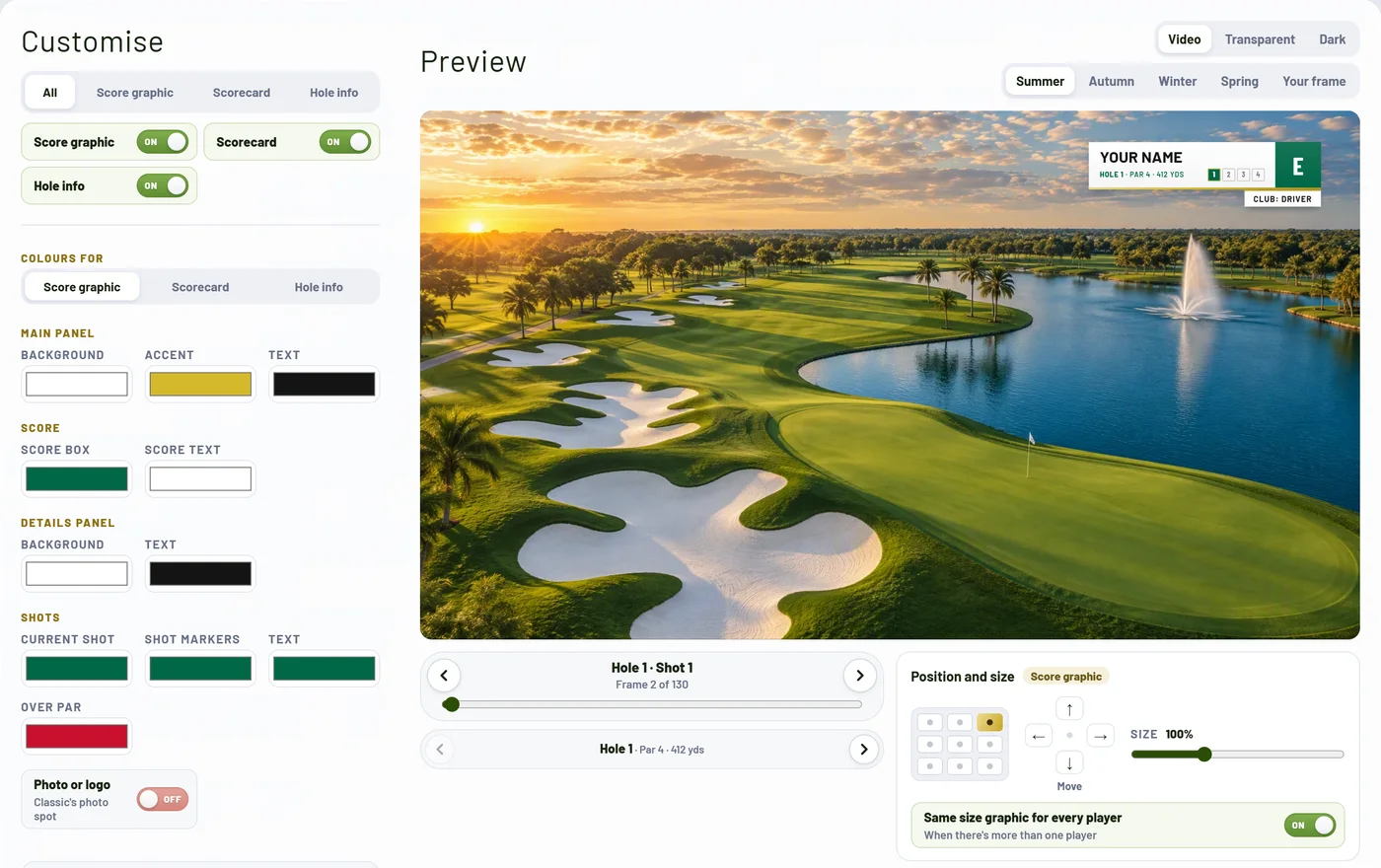
Then export. You get a folder per hole with a PNG for every shot, named in order (H06_S2.png is hole 6, shot 2). That download is what you bring into CapCut: you still place the graphics yourself, but they're ready to drop in, in the right order, and they're all correct.
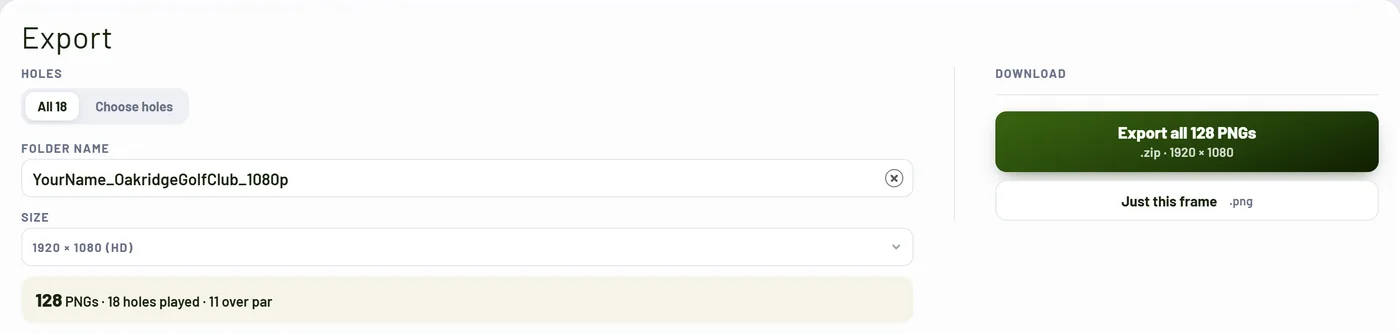
On Pro, animated designs also come as transparent clips, the length you choose. Pick your editing app in the generator's Video format setting and you get the format that keeps transparency there: .mov for CapCut on desktop, and transparent GIFs for CapCut on mobile (1280 × 720, or 720 × 1280 upright).
Try it on your next round
You can make a free account and preview every design with your own name on it before paying anything, and Starter and Pro both come with a 14-day free trial.