How to Add Golf Score Graphics in DaVinci Resolve
2026-11-08 · Score Graphics
DaVinci Resolve is the editor a lot of golf creators end up on: it's free, it's fast, and the free version handles everything a YouTube golf video needs. Adding a score graphic to every shot works well in Resolve too, once you know the two settings that trip most people up. Each score graphic is a transparent overlay that sits above your footage.
This guide covers importing a round's graphics, stopping Resolve from joining them into one clip, placing them over your footage, timing them, and keeping animated clips transparent.
Before you start
- A transparent PNG per shot1920 × 1080 HD, 3840 × 2160 4K, or 1080 × 1920 vertical.
- Files named in orderH06_S2.png for hole 6, shot 2.
- A folder per holeKeeps a big round easy to find your way round.
- A nearly locked editGraphics go on fastest once the shots stop moving.
If you're making the graphics yourself, the beginner's guide covers what goes on one.
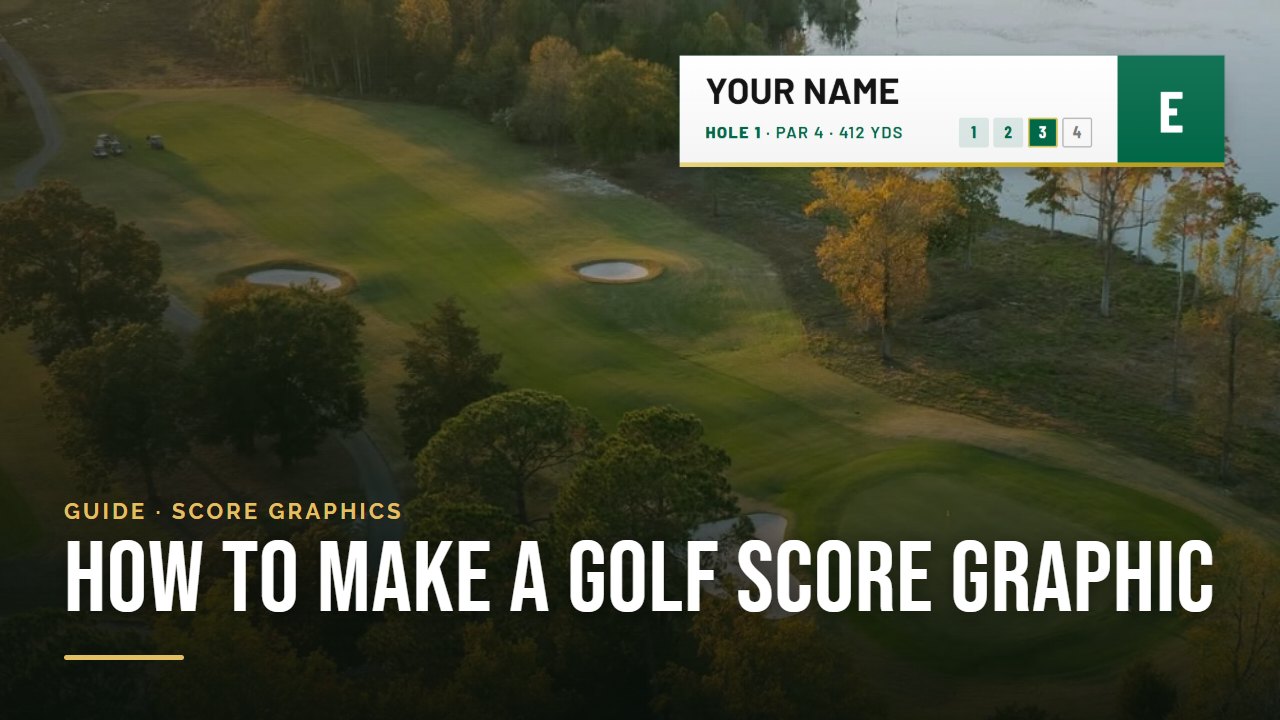 Beginner's guideHow to Make a Golf Score Graphic
Step 1: set the still duration
Every image you drop on the timeline comes in at Resolve's standard still duration, 5 seconds unless you've changed it. Open Preferences → User → Editing and set the standard still duration to roughly one shot, 4 or 5 seconds. You'll still trim each graphic, just less.
While you're setting up, check the project's image scaling (Project Settings → Image Scaling). If your graphics match your timeline size, nothing changes. If you're putting 4K graphics on an HD timeline, scaling mismatched files to fit means you won't resize each one by hand.
Step 2: stop Resolve joining your graphics into one clip
This is the one that catches everyone. Resolve sees a folder of numbered images and treats them as an image sequence: one clip that flashes through every graphic in a few frames. That's handy for animation renders and no good for score graphics.
On the Media page, open the options menu (the three dots) at the top of the Media Storage panel and set Frame Display Mode to Individual. Now every PNG imports as its own still.
Step 3: import the folder as bins
Still on the Media page, find your graphics folder in Media Storage, right-click it and add the folder and its subfolders to the Media Pool with bins. Each hole's folder becomes a bin with its shots inside, in order. You can also drag the folder straight into the Media Pool.
Step 4: place the graphics on V2
Your footage sits on Video 1. Score graphics go on Video 2, the track above, so they show on top of it. A scorecard between holes, a lower-third or captions can each have their own track above that.
- Move the playhead to just before the swing, about a second before the club meets the ball.
- Drag the graphic for that shot from its bin onto Video 2 at the playhead.
- Trim the end to where the shot finishes, usually as the ball lands or the clip cuts to the next shot.
- Repeat for the next shot.
Faster: open a hole's bin, select all its graphics and drag them onto Video 2 together. They land end to end, in name order. Then work along the hole, sliding each one to its shot and trimming it. Turn on snapping so edges lock to your cuts.
Show each graphic before the shot, not as it happens. Viewers want the hole, par and score before the swing, so they know what's riding on it.
Step 5: animated graphics as transparent .mov clips
An animated score graphic is a short clip with a transparent background: it animates in, then stops on the finished graphic. Put the clip down first and the still PNG of the same shot straight after it on Video 2. The clip plays the entrance, and the PNG holds the graphic for the rest of the shot.
For Resolve, use a .mov in QuickTime Animation. If a clip ever shows a black box behind the graphic, the transparency is there but Resolve isn't using it: right-click the clip in the Media Pool, open Clip Attributes, and set the Alpha Mode to Premultiplied (or Straight, whichever looks right). You can select every clip in a bin and change them all at once.
Tips that save time
- Compound each animated pairClip and still move as one, with no gap.
- Lock what you are not touchingTrack lock and auto-select keep Video 2 with Video 1.
- A template timelineFootage V1, graphics V2, scorecards V3. Duplicate it each video.
- Play at full speedScrubbing hides timing problems.
- Vertical as its own timeline1080 × 1920 graphics, not a cropped wide edit.
 Short-form videoGolf Score Graphics for TikTok, Reels and Shorts
Where the time really goes
Placing graphics in Resolve is quick once you've done a round or two. Making them is the slow part: every shot needs its own graphic because the shot number and score change each time, and keeping the score to par right for 18 holes by hand takes hours. Get the 4th hole wrong and everything after it is wrong too.
The Score Graphics Generator makes them for you. Type your scorecard in once, or on Pro photograph it and the AI scan fills it in. It runs in your browser, so there's nothing to install.
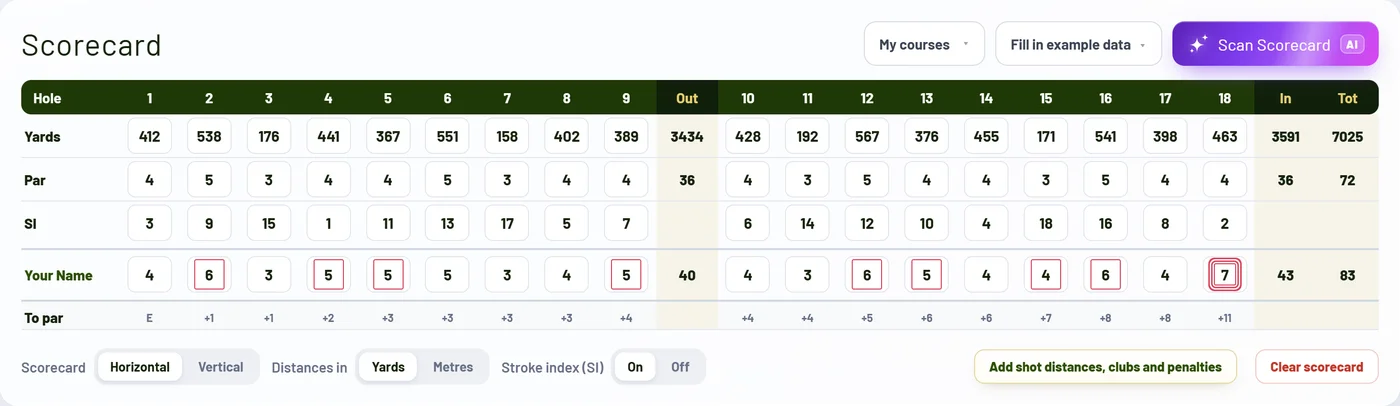
It exports a folder per hole with a transparent PNG for every shot, already named in order, ready to become bins in your Media Pool. Exports come in HD and vertical, and 4K on Pro.
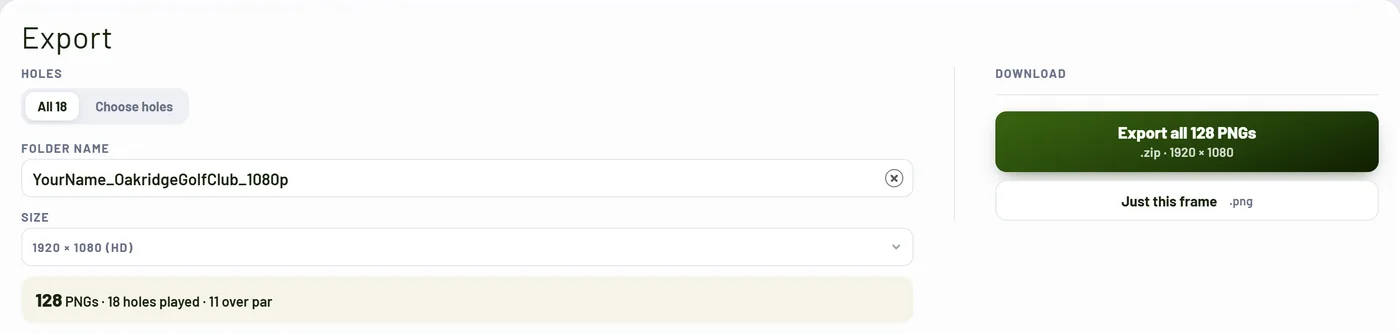
On Pro, animated designs export as transparent clips too. Pick DaVinci Resolve in the generator's video format setting and you get .mov files in QuickTime Animation, the format Resolve keeps transparent. Pro also adds a scorecard graphic after every hole, filled in through that hole.
Try it on your next edit
Make a free account and preview every design with your own name before you pay anything. Starter and Pro both come with a 14-day free trial.